Import Data
The file import dialog allows you to browse project drawing files (or .pla files) and import the lists saved within (including configuration) into a new or existing drawing.
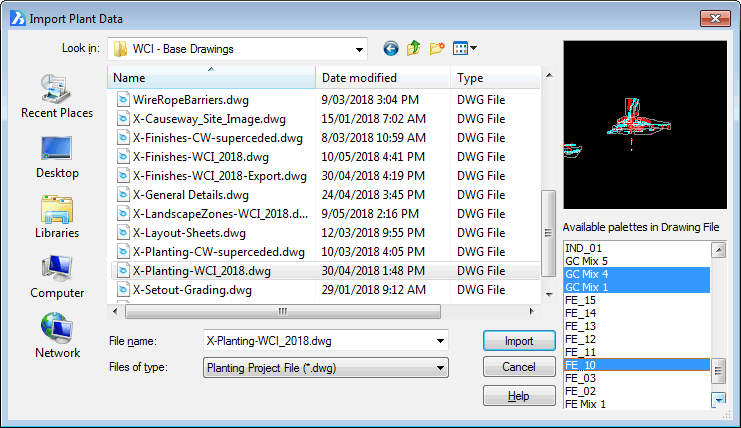
- Access the Import Plant Data dialog by clicking the
 File button at the top right of the PlantManager dialog.
-
If the drawing is empty, the Import Plant Data dialog will open and prompt for a drawing file to select.
If the drawing already contains PlantManager lists, the Manage Lists window will open. In this case, click the  import button to open the Import Plant Data dialog.
In the screenshot here, a selected file contains many lists which are displayed in the right hand pane.
- Select the desired lists to import. If you want to import more than one, hold down the control key while making a selection.
- Click the 'Import' button to import each selected list including its configuration into the current drawing.
Using the same process you can import a Plant Data File (.pla file) by selecting this type at the bottom of the dialog. Browse for a .pla file and click the 'Import' button. In this case, the contents of the file are previewed in the right hand list box. Only one list at a time can be imported with this format.