
Manage Lists

Use this dialog to rename, delete, import and copy existing lists.
To access this dialog, click the  button at the top right of the main dialog or right click on the list window of the palette and select Manage in the popup menu.
Rename Lists
Rename a list by making a selection and typing a new name in the edit box at the top. After clicking OK and closing the dialog, the list will be renamed and the drawing updated.
Duplicate or Save As a copy
You can save a copy of the list within the drawing or to an external file by clicking the save file icon.  . You’ll be prompted to save the file in the drawing as a copy, or to an external plant data (.pla) file.
If saved to an external file, the list’s configuration including layer names, layer format, field names etc. will be saved.
To delete a list, make a selection and click the delete button on the right.
Import Lists
To import lists from an external file, click the button. The Import Data window will open allowing you to select complete lists from drawing files or from saved plant data (.pla) files.
Move or copy items between lists
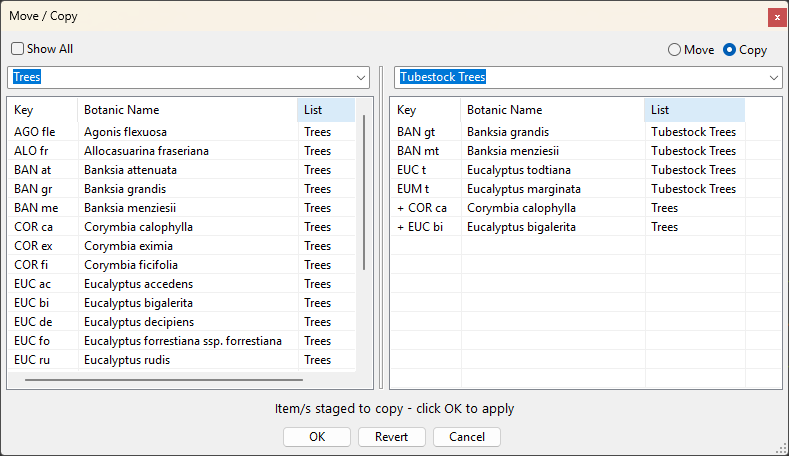
The Move/Copy window transfers plants between lists in the current drawing.
It is accessed by right clicking a plant in the bottom pane of the palette to open a menu and left clicking the Move / Copy item. The dialog can also be opened using the mcp command or by clicking the Move / Copy icon in the main dialog.
The source list (left) defaults to the currently open list, and the target list (right) can be any other list in the drawing, or *NEW LIST* – the last item in the right hand drop down list – to start a new one.
Drag items from one side to the other to build up the change. Multiple items can be selected and dragged though only one will be highlighted.
In Move mode, dragged items leave the list they came from; in Copy mode the original items are retained.
Check Show All at the top left of the dialog to show plants from every list in the drawing on the source side.
Items queued for move or copy are applied when OK is clicked with labels in the drawing updated to suit.
Revert discards a pending change and reloads both lists. Closing the window without clicking OK leaves all lists untouched.